This is the multi-page printable view of this section. Click here to print.

Return to the regular view of this page.

Hardware Setup

How to set up the Raspberry Pi to generate a chirp, communicate with the SDR, and perform pre- and post-processing

In order to standardize between units, much of the Pi setup is automated or semi-automated. This guide will walk you through the steps of setting up your Pi the way we do. Along the way, there are also links for more information on how to customize this setup. This is an area where you will almost certainly need to customize some aspects of the setup.

Initial setup with cloud-init

Setup of the Raspberry Pi is semi-automated using cloud-init.

Cloud-init customization

The cloud-init setup is controlled by two files: user-data and network-config. (You’ll use these files a couple of steps down.)

Examples of each are shown below, but you will likely need to modify these to suit your purpose. We have pages on how to customize user-data and network-config.

user-data Example

#cloud-config

# This is the user-data configuration file for cloud-init.
# The cloud-init documentation has more details:
#
# https://cloudinit.readthedocs.io/

system_info:
  default_user:
    name: ubuntu # Allow the default user to shutdown or reboot the system without entering a password (used by our automated scripts)
    sudo: "ALL=(ALL) NOPASSWD: /sbin/poweroff, /sbin/reboot, /sbin/shutdown"

# On first boot, set the (default) ubuntu user's password to "cryosphere"
chpasswd:
  expire: false
  users:
    - name: ubuntu
      password: $6$rounds=4096$aQ7tu0.beL3WAL32$fKxKYvZpY7EMCoxAU1heRomA3v8WvgbqBhhz08QwOtQdlP/DJOP2BThqZFoRW8d2a9PaIKK9BC9NHs1qNnkya1
      type: hash

# Enable password authentication with the SSH daemon
ssh_pwauth: true

# Set a default timezone
timezone: Etc/UTC

## Update apt database and upgrade packages on first boot
package_update: true
package_upgrade: true

## Install additional packages on first boot
packages:
- net-tools
- git
- cmake
- g++
- mosh
- exfat-fuse
- i2c-tools
- rpi.gpio-common
- util-linux-extra

## Write arbitrary files to the file-system
write_files:
- path: /home/ubuntu/initial_setup.sh
  content: |
    #!/bin/bash
    exec > >(tee -a "initial_setup_output.log") 2>&1
    # Miniconda Setup
    wget --progress=bar:force:noscroll "https://github.com/conda-forge/miniforge/releases/latest/download/Miniforge3-Linux-aarch64.sh" -O $HOME/miniconda.sh
    bash $HOME/miniconda.sh -b -p $HOME/miniconda
    cd $HOME
    source .profile
    source miniconda/etc/profile.d/conda.sh
    conda init bash
    # Setup logger environment
    git clone git@github.com:thomasteisberg/uav_radar_logger.git
    # Clone uhd_radar repo
    git clone git@github.com:radioglaciology/uhd_radar.git
    cd uhd_radar
    #git checkout thomas/dask # Uncomment if you want to check out a specific branch other than main
    conda env create -n uhd -f environment-rpi.yaml
    conda activate uhd
    python /home/ubuntu/miniconda/envs/uhd/lib/uhd/utils/uhd_images_downloader.py
    systemctl --user enable radar.service
    systemctl --user enable logger.service
    ifconfig
    sudo reboot
  append: true
- path: /home/ubuntu/.profile
  content: |
    PATH=/home/ubuntu/miniconda/bin:$PATH
    source /home/ubuntu/.bashrc
  append: true
- path: /home/ubuntu/.ssh/known_hosts
  content: |
    github.com ssh-ed25519 AAAAC3NzaC1lZDI1NTE5AAAAIOMqqnkVzrm0SdG6UOoqKLsabgH5C9okWi0dh2l9GKJl
    github.com ecdsa-sha2-nistp256 AAAAE2VjZHNhLXNoYTItbmlzdHAyNTYAAAAIbmlzdHAyNTYAAABBBEmKSENjQEezOmxkZMy7opKgwFB9nkt5YRrYMjNuG5N87uRgg6CLrbo5wAdT/y6v0mKV0U2w0WZ2YB/++Tpockg=
    github.com ssh-rsa AAAAB3NzaC1yc2EAAAADAQABAAABgQCj7ndNxQowgcQnjshcLrqPEiiphnt+VTTvDP6mHBL9j1aNUkY4Ue1gvwnGLVlOhGeYrnZaMgRK6+PKCUXaDbC7qtbW8gIkhL7aGCsOr/C56SJMy/BCZfxd1nWzAOxSDPgVsmerOBYfNqltV9/hWCqBywINIR+5dIg6JTJ72pcEpEjcYgXkE2YEFXV1JHnsKgbLWNlhScqb2UmyRkQyytRLtL+38TGxkxCflmO+5Z8CSSNY7GidjMIZ7Q4zMjA2n1nGrlTDkzwDCsw+wqFPGQA179cnfGWOWRVruj16z6XyvxvjJwbz0wQZ75XK5tKSb7FNyeIEs4TT4jk+S4dhPeAUC5y+bDYirYgM4GC7uEnztnZyaVWQ7B381AK4Qdrwt51ZqExKbQpTUNn+EjqoTwvqNj4kqx5QUCI0ThS/YkOxJCXmPUWZbhjpCg56i+2aB6CmK2JGhn57K5mj0MNdBXA4/WnwH6XoPWJzK5Nyu2zB3nAZp+S5hpQs+p1vN1/wsjk=
- path: /etc/security/limits.conf # Recommended by Ettus https://kb.ettus.com/USRP_Host_Performance_Tuning_Tips_and_Tricks
  content: |
    ubuntu    - rtprio    99
  append: true
- path: /etc/systemd/user/radar.service
  content: |
    [Unit]
    Description=Service to run the radar code on startup

    [Service]
    Type=simple
    WorkingDirectory=/home/ubuntu/uhd_radar/
    ExecStart=/home/ubuntu/uhd_radar/manager/radar_service.sh

    Restart=always
    RestartSec=10

    KillSignal=SIGINT

    [Install]
    WantedBy=default.target
- path: /etc/systemd/user/logger.service
  content: |
    [Unit]
    Description=Service to log data from I2C sensors and automatically shutdown below a voltage threshold

    [Service]
    Type=simple
    WorkingDirectory=/home/ubuntu/uav_radar_logger/
    ExecStart=/home/ubuntu/uav_radar_logger/logger_service.sh

    Restart=always
    RestartSec=60

    KillSignal=SIGINT

    [Install]
    WantedBy=default.target

# Run arbitrary commands at rc.local like time
# These commands are run with root permissions
# If you want commands run as a normal user, put them in initial_setup.sh (see above)
# which is run as the "ubuntu" user (see below)
runcmd:
- chown -R ubuntu:ubuntu /home/ubuntu
- chmod +x /home/ubuntu/initial_setup.sh
- wget -O /etc/udev/rules.d/uhd-usrp.rules https://raw.githubusercontent.com/EttusResearch/uhd/master/host/utils/uhd-usrp.rules
- usermod -a -G i2c ubuntu
- usermod -a -G dialout ubuntu
- usermod -a -G tty ubuntu
- apt remove -y modemmanager
- systemctl stop serial-getty@ttyS0.service && systemctl disable serial-getty@ttyS0.service
- i2cdetect -y 1
- echo "dtoverlay=i2c-rtc,pcf8523" >> /boot/firmware/config.txt
- loginctl enable-linger ubuntu
- mkdir /media/ssd
- chown ubuntu /media/ssd
- chgrp ubuntu /media/ssd
- echo "/dev/sda2  /media/ssd  exfat  defaults,nofail,uid=1000,gid=1000  0  2" | tee -a /etc/fstab

network-config Example

# This file contains a netplan-compatible configuration which cloud-init will
# apply on first-boot (note: it will *not* update the config after the first
# boot). Please refer to the cloud-init documentation and the netplan reference
# for full details:
#
# https://cloudinit.readthedocs.io/en/latest/topics/network-config.html
# https://cloudinit.readthedocs.io/en/latest/topics/network-config-format-v2.html
# https://netplan.io/reference

version: 2
ethernets:
  eth0:  # Your ethernet name.
    dhcp4: no
    addresses: [192.168.11.137/24]
    gateway4: 192.168.11.1
    nameservers:
      addresses: [8.8.8.8,8.8.4.4]
wifis:
  renderer: networkd
  wlan0:
    dhcp4: true
    optional: true
    access-points:
      "<YOUR WIFI SSID HERE>":
        password: "<YOUR WIFI PASSWORD HERE>"

Imaging your Pi

To start, download the Raspberry Pi Imager tool (or use your preferred software for imaging SD cards). On Ubuntu, you can install it like this:

sudo apt install rpi-imager

For other operating systems, see the website.

Launch Imager. After clicking on “Choose OS,” navigate through the general purpose category to find Ubuntu Server 22.04.xx LTS 64-bit. 64-bit is important – 32-bit will not work.
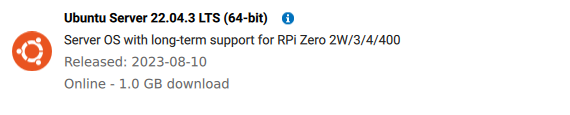
You want Ubuntu Server 22.04 LTS 64-bit.

Insert your MicroSD card and select it as the location to write to.

After imaging is complete, you will see two drives mounted: writable and system-boot.

Copying cloud-init config files

After customizing the user-data and network-config files (see above), copy user-data and network-config to the system-boot volume, replacing the existing files.

Eject the microSD and put it back in the Pi.

Running cloud-init

Power up the Pi and wait for cloud-init to run.

Within about a minute, your Pi should connect to whatever network interface(s) are described in network-config and you should be able to find it on the network. If you setup some sort of key-based authentication (such as by importing a key from GitHub), it may take an extra couple of minutes for this to be ready.

After the network setup is complete, you should be able to login over SSH.

In particular, please note that you need to have SSH agent forwarding working. Instructions for this are on that page.

When you first login, cloud-init may not have finished running. To check the status, run:

cloud-init status --long

There are also logs in /var/log/cloud-init-output.log.

To keep an eye on the entire process, you can run:

watch "cloud-init status --long && tail -n 10 /var/log/cloud-init-output.log"

Expect this process to take a few minutes to complete.

Running initial_setup.sh

After the cloud-init process is complete, you’ll also need to run initial_setup.sh:

./initial_setup.sh

This will log to /home/ubuntu/initial_setup_output.log. It may take around 10 minutes to complete. It will automatically reboot your Pi at the end. If you don’t want this, feel free to comment out the last line.

Setting up the logger service

More details on the logging service will eventually be here.

For now, if you’re building a Peregrine system, the default setup should be fine.

If you’re building Eyas, first run this command to create a place for logs:

mkdir /media/ssd/logger

And then modify the last line of /home/ubuntu/uav_radar_logger/logger_service.sh to look like this:

python -u logger.py --shutdown-voltage 11.8 --log-dir /media/ssd/logger/

Replacing 11.8 with an appropriate threshold (in volts) at which to shutdown.

Setting up the radar service

More details on the radar service will eventually be here.

For now, if you’re building a Peregrine system, the default setup should be fine.

If you’re building Eyas, run these commands to create a location for logging data and update the default configuration:

mkdir /media/ssd/radar
cd /home/ubuntu/uhd_radar/config
mv default.yaml default-old.yaml
cp default-eyas.yaml default.yaml

Using overlayroot to protect the file system

Let’s take a quick step back and talk about the problem before we talk about (perhaps drastic) solutions:

MicroSD card corruption is an ongoing challenge for any device (such as the Pi) that boots from a MicroSD card. Most cases can be traced to either (a) junk MicroSD cards or (b) sudden power loss during a write operation.

You can mostly avoid problem (a) by carefully sourcing your MicroSD cards. If you’re considering saving $20 by buying an off-brand MicroSD card or, worse, a possible fake, don’t do it.

Sudden power loss is harder to completely guard against. Ideally, you want to shutdown your Pi before removing power. This can be done by SSH-ing into it and running sudo shutdown -h now and waiting about a minute. If you use our radar systemd service, you can also perform a safe shutdown by pressing and holding the button for 5 seconds, waiting for the light to turn off, and then giving it about a minute to fully shut down.

For Peregrine, this should all be good enough.

For Eyas and other longer-term installations, the risk of a battery discharging faster than expected is relatively high.

The first line of defense is the automatic shutdown provided by the logger service that will safely shut everything down when the battery voltage gets too low.

If you have a separate data storage device, such as an external USB-connected SSD, you can go a step further and make your Pi’s MicroSD card read-only.

A utility called overlayroot (which uses OverlayFS) can be used to make the root filesystem read-only and create an “overlay filesystem” stored only in RAM. This means that all changes to the MicroSD card file system are temporary and are lost upon reboot.

This is great for keeping a standardized configuration, but you need to be aware that this means most log files are lost on reboot, any config files on the SD card are lost on reboot, and all radar data you want to keep around must be stored to your external storage device.

You can read a more detailed tutorial about Overlayroot here.

If you’re going to do this, be sure that you’ve tested your setup in advance so you know if the data you want to keep is being stored.

Enabling Overlayroot

If you still want to set this up, it’s quite easy to enable.

Simply edit the last line of /etc/overlayroot.conf to this:

overlayroot="tmpfs:recurse=0"

tmpfs specifies that we want to use a RAM-based filesystem to store the “overlay” part of the filesystem. recurse=0 says that we want to apply this only to the / mount and not to other mounts below that.

(You need to edit this file as root. For example: sudo vim /etc/overlayroot.conf)

Disabling Overlayroot

You can temporarily re-mount the root filesystem to edit things using the built-in utility:

sudo overlayroot-chroot

To exit, just type exit.

If you want to permenantly disable it, just edit the last line of /etc/overlayroot.conf back to:

overlayroot=""

and reboot.

Step-by-step Installation Guide

The following guide is for Windows, however the steps are the same for Linux and MacOS with some minor tweaks (no need to install WSL, filepaths may differ, etc).

Installing Software

  1. Install Visual Studio Code (VSCode) or another code editor of your choice.

    If you are using VSCode, see the additional steps for setting it up here.

  2. Install Windows Subsystem for Linux (WSL). ORCA is developed to be used on a Linux system and requires a Linux terminal such as WSL to run.

    From the Start menu, open Powershell and run wsl --install.

  3. Download Conda for Linux. In this guide, we use Miniconda. More details about Conda can be found here. You do not need to open or run the .sh file at this time.

  4. Within VSCode, open a new Ubuntu (WSL) terminal. You may be prompted to create a username and password for the Linux installation. This password will be used any time you run WSL terminal commands with administrator permissions (sudo).

  5. In the WSL terminal, run bash <path-to-Downloads>/Miniconda3-latest-Linux_x86_64.sh. The path to your downloads folder is typically /mnt/c/Users/<your-username>/Downloads. Accept the default options when prompted, and select yes when asked about auto_activate_base, though we will change this setting later.

  6. After Miniconda has been installed, close and reopen the WSL terminal, then run conda list to confirm everything has been installed correctly. You should see a long list of all the installed dependencies printed to the terminal. If you get an error saying conda: command not found, you may be in the wrong terminal or did not install it correctly.

  7. We are now going to disable conda from activating every time you open a new terminal. To do this, run conda config --set auto_activate_base false.

Connecting to GitHub

If you do not intend to modify the code in any way, you may skip this section.

  1. Create an account on GitHub and sign in.
  2. Go to the ORCA Repository and click Fork to create your own copy of the code. Name this new repository whatever you want.
  3. To securely connect your computer to GitHub we will create an SSH key. In the WSL terminal, run ssh-keygen -t ed25519 -C "your@email.com" and accept the default location.
  4. Create a password that you will input each time you push or pull code from GitHub. When you type the password, no text will appear in the terminal but the password is being logged.
  5. We now need to copy the public key you just created. When the key was generated, a message should have been printed that says something like Your public key has been saved in /home//.ssh/id_ed25519.pub. To view the contents of this public key file, run cat /home/<your-username>/.ssh/id_ed25519.pub and copy the full key that is printed to the terminal.
  6. In GitHub. open Settings > SSH and GPG Keys, and click New SSH Key, then paste the key into the appropriate box.

Cloning the Repository

  1. We now need to install Git in WSL. Run sudo apt update && sudo apt install git.
  2. To be able to access the code from GitHub on your computer, we have to clone the repository. Go to the fork you just created (or the ORCA repository if you are not creating a fork), and click the green Code button. Within the dropdown, go to the SSH tab and copy the link. It should end in .git.
  3. Navigate (cd) to whichever folder you would like the code to be copied into, and run git clone <link-to-repo>.
  4. In VSCode, you can now view the code with File > Open Folder.

Setting up Conda

  1. We now need to use Conda to install the required dependencies for ORCA.
  2. Before we create the conda environment, check that GCC is installed by running gcc --version in the WSL terminal. If the gcc command is not found, install it with sudo apt update && sudo apt install gcc.
  3. Navigate to the folder containing the code. If you are using a Raspberry Pi to control the SDR, then use environment-rpi.yaml in the next step instead. Run conda env create -f environment.yaml.
  4. Once the environment is installed, activate it with conda activate uhd.
  5. Finally, we need to install any remaining dependencies for compiling the code, such as make. To install them, run sudo apt update and sudo apt install build-essential.

The code is now installed and ready to be compiled and run, either manually or using the run.py script provided.

1 - Compatible hardware

Options for SDR hardware and host computers

Selecting a Software-Defined Radio (SDR)

ORCA is built upon the USRP Hardware Driver (UHD). As such, it is theoretically compatible with any Ettus SDR. We have primarily tested with B and X series devices (B205mini and X310, in particular), however most other Ettus SDRs should work with minor tweaks.

The basic capabilities of the two models we regularly use are detailed below:

SDRFrequency Range (GHz)Bandwidth (MHz)ChannelsMass (kg)Approximate Cost (USD)
X310 with UBX1600.01-62002 TX, 2 RX1.7$14,0000
B205mini-i0.07-6561 TX, 1 RX0.024$1,600

In general, we recommend B series devices for applications with constraints on size, weight, power, or budget. When capabilities beyond the B series are needed, we recommend the X series.

If no device in either series suits your needs, consider other Ettus SDRs. Most should work with minor tweaks. The exception to note are E series devices, which include an embedded computer running Linux. In theory, this code could be run on that embedded computer, however the performance limitations would limit the use cases.

Host Computer

Unless you choose an E series device (see caution above), you will also need a computer to interface with the SDR. This computer is where the ORCA code will run.

The capabilities of the computer can make a significant difference in the system performance. The host computer must support an interface with enough bandwidth for the samples you want to transfer and be able to store these samples to an appropriate storage medium.

If you’re not resource constrained, a modern laptop will provide more than enough processing power, as long as it supports the interface you need. Keep in mind that X-series SDRs need a 10 gigabit ethernet (10 GigE) interface to achieve maximum sample rates. Few laptops natively support 10 GigE, however there are Thunderbolt adapters available. (Not all USB C ports support Thunderbolt and it may not be available on low-end laptops.)

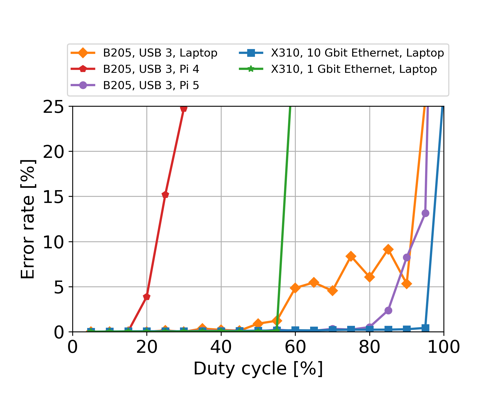
For an embedded solution, Raspberry Pi’s are suitable for working with B series devices. The performance of the Raspberry Pi 5 greatly exceeds the Raspberry Pi 4, likely due to the introduction of a new USB interface chip.

Some caution is advised with other single-board computers. Their performance will likely be limited by their choice of USB controller chip.

For some examples of duty cycles achievable with various combinations of SDRs and host computers, see the figure below. Note that actual performance will depend on a variety of factors, including your exact configuration and the speed of your storage medium.

Example results from running error_code_late_command_sweep.py on several combinations of host computers and SDRs.

2 - 2 - Default Setup for the Raspberry Pi

Default configurations for all files on the Raspberry Pi.

Use this when setting up your Raspberry Pi on initial boot-up.

The default user-data we start from is as shown below. You will likely need to tweak many of these settings. Descriptions and tips for the most important sections are below.

Note that this is one of two key configuration files. You can read about network-config here.

Starting point user-data file

#cloud-config

# This is the user-data configuration file for cloud-init.
# The cloud-init documentation has more details:
#
# https://cloudinit.readthedocs.io/

system_info:
  default_user:
    name: ubuntu # Allow the default user to shutdown or reboot the system without entering a password (used by our automated scripts)
    sudo: "ALL=(ALL) NOPASSWD: /sbin/poweroff, /sbin/reboot, /sbin/shutdown"

# On first boot, set the (default) ubuntu user's password to "cryosphere"
chpasswd:
  expire: false
  users:
    - name: ubuntu
      password: $6$rounds=4096$aQ7tu0.beL3WAL32$fKxKYvZpY7EMCoxAU1heRomA3v8WvgbqBhhz08QwOtQdlP/DJOP2BThqZFoRW8d2a9PaIKK9BC9NHs1qNnkya1
      type: hash

# Enable password authentication with the SSH daemon
ssh_pwauth: true

# Set a default timezone
timezone: Etc/UTC

## Update apt database and upgrade packages on first boot
package_update: true
package_upgrade: true

## Install additional packages on first boot
packages:
- net-tools
- git
- cmake
- g++
- mosh
- exfat-fuse
- i2c-tools
- rpi.gpio-common
- util-linux-extra

## Write arbitrary files to the file-system
write_files:
- path: /home/ubuntu/initial_setup.sh
  content: |
    #!/bin/bash
    exec > >(tee -a "initial_setup_output.log") 2>&1
    # Miniconda Setup
    wget --progress=bar:force:noscroll "https://github.com/conda-forge/miniforge/releases/latest/download/Miniforge3-Linux-aarch64.sh" -O $HOME/miniconda.sh
    bash $HOME/miniconda.sh -b -p $HOME/miniconda
    cd $HOME
    source .profile
    source miniconda/etc/profile.d/conda.sh
    conda init bash
    # Setup logger environment
    git clone git@github.com:thomasteisberg/uav_radar_logger.git
    # Clone uhd_radar repo
    git clone git@github.com:radioglaciology/uhd_radar.git
    cd uhd_radar
    #git checkout thomas/dask # Uncomment if you want to check out a specific branch other than main
    conda env create -n uhd -f environment-rpi.yaml
    conda activate uhd
    python /home/ubuntu/miniconda/envs/uhd/lib/uhd/utils/uhd_images_downloader.py
    systemctl --user enable radar.service
    systemctl --user enable logger.service
    ifconfig
    sudo reboot
  append: true
- path: /home/ubuntu/.profile
  content: |
    PATH=/home/ubuntu/miniconda/bin:$PATH
    source /home/ubuntu/.bashrc
  append: true
- path: /home/ubuntu/.ssh/known_hosts
  content: |
    github.com ssh-ed25519 AAAAC3NzaC1lZDI1NTE5AAAAIOMqqnkVzrm0SdG6UOoqKLsabgH5C9okWi0dh2l9GKJl
    github.com ecdsa-sha2-nistp256 AAAAE2VjZHNhLXNoYTItbmlzdHAyNTYAAAAIbmlzdHAyNTYAAABBBEmKSENjQEezOmxkZMy7opKgwFB9nkt5YRrYMjNuG5N87uRgg6CLrbo5wAdT/y6v0mKV0U2w0WZ2YB/++Tpockg=
    github.com ssh-rsa AAAAB3NzaC1yc2EAAAADAQABAAABgQCj7ndNxQowgcQnjshcLrqPEiiphnt+VTTvDP6mHBL9j1aNUkY4Ue1gvwnGLVlOhGeYrnZaMgRK6+PKCUXaDbC7qtbW8gIkhL7aGCsOr/C56SJMy/BCZfxd1nWzAOxSDPgVsmerOBYfNqltV9/hWCqBywINIR+5dIg6JTJ72pcEpEjcYgXkE2YEFXV1JHnsKgbLWNlhScqb2UmyRkQyytRLtL+38TGxkxCflmO+5Z8CSSNY7GidjMIZ7Q4zMjA2n1nGrlTDkzwDCsw+wqFPGQA179cnfGWOWRVruj16z6XyvxvjJwbz0wQZ75XK5tKSb7FNyeIEs4TT4jk+S4dhPeAUC5y+bDYirYgM4GC7uEnztnZyaVWQ7B381AK4Qdrwt51ZqExKbQpTUNn+EjqoTwvqNj4kqx5QUCI0ThS/YkOxJCXmPUWZbhjpCg56i+2aB6CmK2JGhn57K5mj0MNdBXA4/WnwH6XoPWJzK5Nyu2zB3nAZp+S5hpQs+p1vN1/wsjk=
- path: /etc/security/limits.conf # Recommended by Ettus https://kb.ettus.com/USRP_Host_Performance_Tuning_Tips_and_Tricks
  content: |
    ubuntu    - rtprio    99
  append: true
- path: /etc/systemd/user/radar.service
  content: |
    [Unit]
    Description=Service to run the radar code on startup

    [Service]
    Type=simple
    WorkingDirectory=/home/ubuntu/uhd_radar/
    ExecStart=/home/ubuntu/uhd_radar/manager/radar_service.sh

    Restart=always
    RestartSec=10

    KillSignal=SIGINT

    [Install]
    WantedBy=default.target
- path: /etc/systemd/user/logger.service
  content: |
    [Unit]
    Description=Service to log data from I2C sensors and automatically shutdown below a voltage threshold

    [Service]
    Type=simple
    WorkingDirectory=/home/ubuntu/uav_radar_logger/
    ExecStart=/home/ubuntu/uav_radar_logger/logger_service.sh

    Restart=always
    RestartSec=60

    KillSignal=SIGINT

    [Install]
    WantedBy=default.target

# Run arbitrary commands at rc.local like time
# These commands are run with root permissions
# If you want commands run as a normal user, put them in initial_setup.sh (see above)
# which is run as the "ubuntu" user (see below)
runcmd:
- chown -R ubuntu:ubuntu /home/ubuntu
- chmod +x /home/ubuntu/initial_setup.sh
- wget -O /etc/udev/rules.d/uhd-usrp.rules https://raw.githubusercontent.com/EttusResearch/uhd/master/host/utils/uhd-usrp.rules
- usermod -a -G i2c ubuntu
- usermod -a -G dialout ubuntu
- usermod -a -G tty ubuntu
- apt remove -y modemmanager
- systemctl stop serial-getty@ttyS0.service && systemctl disable serial-getty@ttyS0.service
- i2cdetect -y 1
- echo "dtoverlay=i2c-rtc,pcf8523" >> /boot/firmware/config.txt
- loginctl enable-linger ubuntu
- mkdir /media/ssd
- chown ubuntu /media/ssd
- chgrp ubuntu /media/ssd
- echo "/dev/sda2  /media/ssd  exfat  defaults,nofail,uid=1000,gid=1000  0  2" | tee -a /etc/fstab

Password-less shutdown

system_info:
  default_user:
    name: ubuntu # Allow the default user to shutdown or reboot the system without entering a password (used by our automated scripts)
    sudo: "ALL=(ALL) NOPASSWD: /sbin/poweroff, /sbin/reboot, /sbin/shutdown"

One of the features supported by the uav_radar_logger utility is to automatically cleanly shutdown the system if the measured battery voltage drops below a threshold. To facilitate this, the default user must be able to shutdown the system without needing additional authentication. This gives permission for the ubuntu user to call sudo shutdown or sudo reboot without entering a password.

Password authentication

# On first boot, set the (default) ubuntu user's password to "cryosphere"
chpasswd:
  expire: false
  list:
  - ubuntu:$6$rounds=4096$aQ7tu0.beL3WAL32$fKxKYvZpY7EMCoxAU1heRomA3v8WvgbqBhhz08QwOtQdlP/DJOP2BThqZFoRW8d2a9PaIKK9BC9NHs1qNnkya1

# Enable password authentication with the SSH daemon
ssh_pwauth: true

This sets up a default password for the ubuntu user. You should change this to something else (or disable password authentication completely, if you prefer).

Passwords are stored in a hashed format. You can generate password hashes using this utility:

mkpasswd --method=SHA-512 --rounds=4096

Timezone

# Set a default timezone
timezone: Etc/UTC

You could set this to other time zones (i.e. `America/Los_Angeles"), but really it would make everyone’s life easier if you just set your clock to UTC.

Add SSH keys through GitHub

## On first boot, use ssh-import-id to give the specific users SSH access to
## the default user
ssh_import_id:
- gh:thomasteisberg
- gh:albroome
- gh:dfxmay

You can very conveniently enable key-based authentication for specific GitHub user names. If your username is in here and you have a public key setup with GitHub, this public key will be imported and you will be able to SSH into your Pi with no additional setup. You might want to remove us from your list, though. :)

Files

Arbitrary files can be written to the system with cloud-init. Some of these are important.

initial_setup.sh

- path: /home/ubuntu/initial_setup.sh
  content: |
    #!/bin/bash
    exec > >(tee -a "initial_setup_output.log") 2>&1
    # Miniconda Setup
    wget --progress=bar:force:noscroll "https://github.com/conda-forge/miniforge/releases/latest/download/Miniforge3-Linux-aarch64.sh" -O $HOME/miniconda.sh
    bash $HOME/miniconda.sh -b -p $HOME/miniconda
    cd $HOME
    source .profile
    source miniconda/etc/profile.d/conda.sh
    conda init bash
    # Setup logger environment
    git clone git@github.com:thomasteisberg/uav_radar_logger.git
    # Clone uhd_radar repo
    git clone git@github.com:radioglaciology/uhd_radar.git
    cd uhd_radar
    #git checkout thomas/dask # Uncomment if you want to check out a specific branch other than main
    conda env create -n uhd -f environment.yaml
    conda activate uhd
    python /home/ubuntu/miniconda/envs/uhd/lib/uhd/utils/uhd_images_downloader.py
    systemctl --user enable radar.service
    systemctl --user enable logger.service
    ifconfig
    sudo reboot
  append: true

The initial_setup.sh script grabs copies of our code and sets up the radar and logging services. This script is intended to be manually run the first time you SSH into the system. This enables you to use SSH agent forwarding to provide any needed GitHub authentication to get the code.

This is also where you would customize the repositories to check out (if, for example, you’ve forked our code) and where you can pick a branch to automatically checkout.

Radar and Logger services

- path: /etc/systemd/user/radar.service
  content: |
    [Unit]
    Description=Service to run the radar code on startup

    [Service]
    Type=simple
    WorkingDirectory=/home/ubuntu/uhd_radar/
    ExecStart=/home/ubuntu/uhd_radar/manager/radar_service.sh

    Restart=always
    RestartSec=10

    KillSignal=SIGINT

    [Install]
    WantedBy=default.target
- path: /etc/systemd/user/logger.service
  content: |
    [Unit]
    Description=Service to log data from I2C sensors and automatically shutdown below a voltage threshold

    [Service]
    Type=simple
    WorkingDirectory=/home/ubuntu/uav_radar_logger/
    ExecStart=/home/ubuntu/uav_radar_logger/logger_service.sh

    Restart=always
    RestartSec=60

    KillSignal=SIGINT

    [Install]
    WantedBy=default.target

Two systemd services are used to manage everything. One run the radar code in its default button-controlled setup. The other runs basic logging of I2C-connected sensors and handles automatic low-battery shutdown.

Run commands

runcmd:
- chown -R ubuntu:ubuntu /home/ubuntu
- chmod +x /home/ubuntu/initial_setup.sh
- wget -O /etc/udev/rules.d/uhd-usrp.rules https://raw.githubusercontent.com/EttusResearch/uhd/master/host/utils/uhd-usrp.rules
- usermod -a -G i2c ubuntu
- usermod -a -G dialout ubuntu
- usermod -a -G tty ubuntu
- apt remove -y modemmanager
- systemctl stop serial-getty@ttyS0.service && systemctl disable serial-getty@ttyS0.service
- i2cdetect -y 1
- echo "dtoverlay=i2c-rtc,pcf8523" >> /boot/firmware/config.txt
- loginctl enable-linger ubuntu
- mkdir /media/ssd
- echo "/dev/sda2  /media/ssd  exfat  defaults,nofail,uid=1000,gid=1000  0  2" | tee -a /etc/fstab

Some final setup is done by running arbitrary commands. These are run as the root user.

One aspect of this you may wish to customize are the last two lines, which add settings to automatically mount an ExFAT-formatted SSD plugged into the Pi. This can be (optionally) used as a storage location for radar data.

Testing changes

You may want to test your changes before using them on your Pi. Options for doing that are described here. Note that the initial_setup.sh script downloads miniconda for the aarch64 architecture, which probably won’t work on your computer. If you want to test that part, you’ll need to change this.

3 - Runtime overview

Overview of the code’s architecture

Conda environment setup

All of the required dependencies can be installed as a conda environment using the environment.yaml file in the repository. More instructions can be found in the README file.

Startup scripts

The X series devices require some initial network configuration. For convenience, a startup script is provided to automate this setup. You may need to tweak this file to your setup.

Runner scripts

The basic steps required to run the radar are:

  1. Build the C++ code
  2. Generate a chirp file to transmit based on your configuration
  3. Run the compiled radar code
  4. Move the collected data to an appropriate location

The main interface for running the radar code is through run.py, a Python script designed to automate the above process. This script is run as follows:

python run.py config/my_radar_configuration.yaml

At the end of the data collection, data will be saved with the current date to a location specified in the YAML config file.

Generally, three files are saved:

  • YYYYMMDD_hhmmss_rx_samps.bin - This is a binary file containing the raw samples recorded the SDR. Note that this file is not interpretable unless you also have the config file used.
  • YYYYMMDD_hhmmss_config.yaml - This is the YAML config file passed to run.py. It defines all parameters of the data collection, allowing for the rx_samps.bin file to be interpreted and processed.
  • YYYYMMDD_hhmmss_uhd_stdout.log - This is a text file containing the output of running the radar code. This is helpful for debugging and also contains a log of any errors encountered, which may be required to reconstruct the timing of each recording.

More details on the files stored and how these can be re-processed into a Zarr file are on the file formats page.

Note that there are also settings available to break rx_samps.bin into multiple files as needed.

SDR interface code

For performance reasons, the code directly interfacing with the SDR is written in C++. This code is all located in the sdr/ directory of the repository.

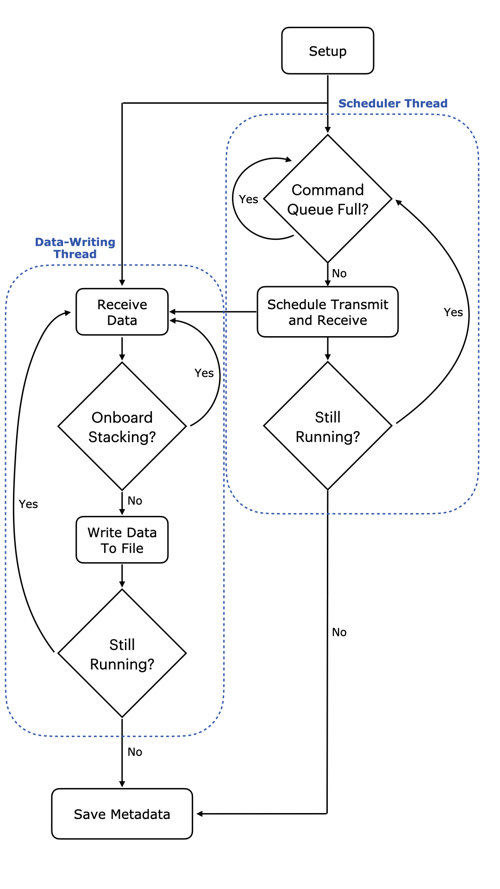
The main radar code is contained in main.cpp (with some SDR setup code located in rf_settings.cpp). The radar code runs in two threads, as shown in the figure below.

General architecture of the ORCA code

One thread is responsible for scheduling timed commands that are enqueued into FIFO queues within the SDR’s FPGA.

The other thead is responsible for pulling received samples from the SDR and writing them to a file on the host computer.

For a more complete overview, please refer to our paper:

T. O. Teisberg, A. L. Broome and D. M. Schroeder, “Open Radar Code Architecture (ORCA): A Platform for Software-Defined Coherent Chirped Radar Systems,” in IEEE Transactions on Geoscience and Remote Sensing, vol. 62, pp. 1-11, 2024, Art no. 5109411, doi: 10.1109/TGRS.2024.3446368.

4 - Connect and Control Options

Options for connecting to the Raspberry Pi in order to transmit desired data or set parameters.

Most of the time, the Pi doesn’t need an internet connection. There are, however, a couple of cases where you may want some sort of a network connection to the Pi.

These are:

  1. Downloading data from the Pi to a computer (requires a network connection but not internet)
  2. Initial setup with cloud-init (requires internet)
  3. Updating code by pulling from GitHub (requires internet)

There are three potential ways to communicate with the Raspberry Pi; direct control, ethernet, or via Wi-Fi. The Raspberry Pi as set up does not have a graphical user interface (GUI). After initial set-up, if the user wants to add remote access or move files onto the Pi, they wil need to do so using direct control. Direct control uses Secure Shell (ssh) protocol.

Direct Control

To access the Pi’s terminal directly you will need:

  1. Raspberry Pi 5
  2. Pi Power Supply (plugged into wall)
  3. Monitor (plugged into wall)
  4. HDMI to Micro-HDMI cable
  5. Keyboard
  6. Ethernet cable connected to a router (or ethernet port on the wall of the lab)

Connect the ethernet (or just use Wi-Fi), micro-HDMI, keyboard, and power supply to the Raspberry Pi. When it boots, you will see the Pi’s Ubuntu Server terminal on the monitor and can log in and run commands directly with the keyboard (no mouse inputs). There is no way to scroll up through this terminal, so if you want to be able to read a long output from a command you must pipe it into a file (ex. python run.py >> terminal_output.txt), then read the text file using nano.

After you have connected to the Raspberry Pi using direct control, it is possible to configure the computer to use SSH so that you can log in to the Pi on your computer (via Ethernet or via Wi-Fi).

To do so, you need to set up SSH agent forwarding, or confirm that it is already running.

Confirm that SSH agent forwarding (i.e. a remote server can access the local SSH agent on your behalf) is working properly by running ssh -T git@github.com.

SSH Agent Forwarding

If you need to authenticate to GitHub to download code, the recommended way is using SSH agent forwarding.

To summarize the above link, you should make sure you have an SSH key setup with your GitHub account.

Test this by running ssh -T git@github.com.

You should now have permission to SSH into the Pi from your laptop using direct control, ethernet, or Wi-Fi.

Modify your ~/.ssh/config file (use nano ~/.ssh/config) and add an entry like this enabling SSH agent forwarding:

Host 192.168.11.137
    HostName 192.168.11.137
    User ubuntu
    ForwardAgent yes

Note that if your username or host IP address is different, you should adjust it accordingly.

Once this is set up properly, it is possible to connect to the Raspberry Pi through your computer (Ethernet) or through Wi-Fi, so long as the Raspberry Pi remains powered.

SSH over Ethernet

This is the preferred method for connecting to and controlling the Pi, and the only method that does not require the Pi to be connected to a router or Wi-Fi network. However, it does take a bit of setup the first time.

For this method, you will need:

  1. Laptop connected to Wi-Fi
  2. Raspberry Pi 5
  3. Pi Power Supply (plugged into wall)
  4. Ethernet cable
  5. Ethernet to usb-c adapter (if your laptop doesn’t have an ethernet port)

Configuring your computer

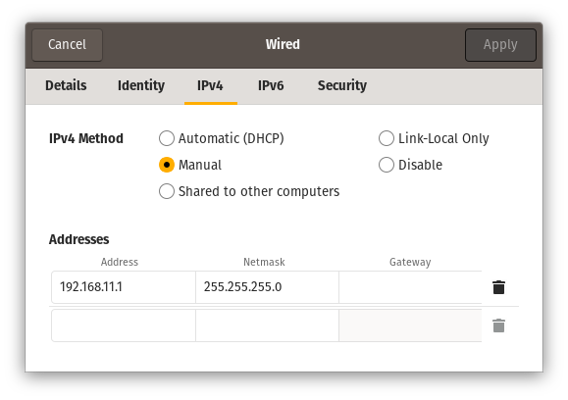
If you’re connecting to the Pi via a simple ethernet cable to your computer, you’ll want both configured with static IPs. The config file above will do this on the Pi side. On your computer, you’ll want to set a static IP of 192.168.11.1 and a netmask of 255.255.255.0. For example, your settings may look like this:

Example laptop configuration to connect to the Pi over an ethernet cable

Sharing internet from your computer

Sharing your computer’s internet connection from one network interface to another is a useful trick to get an internet connection for the Pi. This can be done between any two network interfaces (i.e. from your Wi-Fi connection to the Pi over ethernet or from one WiFi card to a network created by a second Wi-Fi card).

The Arch Linux wiki has useful instructions for configuring internet sharing on Linux.

To briefly summarize them:

All of this setup will happen on your laptop (or whatever computer has an internet connection).

  1. Enable IPv4 forwarding: sudo sysctl net.ipv4.ip_forward=1
  2. Setup NAT with iptables: (See note below if you have docker installed!)
sudo iptables -t nat -A POSTROUTING -o wlan0 -j MASQUERADE
sudo iptables -A FORWARD -m conntrack --ctstate RELATED,ESTABLISHED -j ACCEPT
sudo iptables -A FORWARD -i net0 -o wlan0 -j ACCEPT

Where wlan0 should be replaced with the name of the network interface on your computer which is currently connected to the internet, and net0 should be replaced with the name of the network interface on the same computer which is connected to the Pi.

Connecting to Wi-Fi through Ethernet

Process

  1. Plug the power supply into the Pi and plug one end of the ethernet cable into the Pi, and the other into your laptop.

  2. Connect your laptop to any Wi-Fi network.

  3. If your laptop’s public SSH key is not already on the Pi, see the section above for how to add it.

  4. If this is your first time setting up this method, you will now need to enable internet sharing on your laptop. If you have done this before, then skip this step.

    Windows:

    1. Open Control Panel and go to the Network section.
    2. Find the Wi-Fi connection and right click on it, then go to Properties.
    3. At the top, click on the Sharing tab.
    4. Check “Allow other network users to connect…”
    5. In the dropdown, select “Ethernet2” (not the ethernet for WSL).
    6. Apply the changes.

    Linux:

    1. Install Network Manager Command-line Interface (nmcli) with sudo apt install network-manager.
    2. Find the connection name with nmcli con show. Find the entry with type ethernet, it should have a name like “Wired connection 1”.
    3. Run nmcli con modify “Wired connection 1” ipv4.method shared.
  5. If you are on Linux, run nmcli con up “Wired connection 1”

  6. Find the Pi’s IP address on your local subnet.

    • Windows: Open PowerShell and run arp -a. You should see an interface for 192.168.137.1 and within that section should be an IP address that starts with 192.168.137 and ends with something other than .0 or .1 (ex. 192.168.137.27).
    • Linux: If for some reason you cannot find the IP, confirm the subnet is 10.42.0 by running ip a. Look at the section labeled enxc and make sure it says “state UP”. You should see labeled something like inet 10.42.0.1/24. You can then scan the subnet to find the pi by running nmap -sn 10.42.0.1/24 and looking for a device that’s not 10.42.0.1. You may need to restart the Pi and give it a minute to boot.
  7. Run ssh ubuntu@<pi-ip-address> to connect to the Pi. You can now run commands on the Pi, and transfer files to and from your laptop using SCP (see below).

SSH over Wi-Fi

This method is nice as it requires less cables and can be used for connecting multiple devices, however you will have to use one of the other methods such as SSH over Ethernet initially to find the Pi’s internet IP address.

For this method, you will need:

  1. Laptop connected to Wi-Fi
  2. Raspberry Pi 5
  3. Pi Power Supply (plugged into wall)
  4. Ethernet cable connected to a router (or to the ethernet port on the wall of the lab) if not connecting the Pi to Wi-Fi

Process

  1. Plug the ethernet and power cable into the Pi and turn it on.
  2. If you do not know what the Pi’s current IP address is, you must first use the Direct Control method above to get access to the terminal. When the Pi first boots, system information is printed to the terminal. In the bottom right corner of this message, you should see a section that says “IPv4 address for eth0: 128.138.189.xxx”. You can also find the IP address by running ip a and looking for the address under the eth0 section. This address may change each time the Pi is reconnected to the internet.
  3. Connect your laptop to the UCB Wireless network.
  4. Check if you can find the Pi over the internet by running the command ping -c 1 128.138.189.xxx (where xxx is replaced by the Pi’s IP). On Windows, this must be done in PowerShell, not WSL. If it says 0 packets received, then either the IP address is incorrect, or you are not on the same network as the Pi.
  5. If your laptop’s public SSH key is not already on the Pi, see the section above for how to add it.
  6. Run ssh ubuntu@128.138.189.xxx to connect to the Pi. You can now run commands on the Pi, and transfer files to and from your laptop using SCP (see above).

Transferring files to and from the Pi

The Raspberry Pi 5 unfortunately does not support data transfer (USB OTG) over its USB 3.0 ports. Fortunately, we can make use of the SSH connection to send files to and from the Pi using SCP and/or GitHub.

If you have committed changes to the code and pushed them to GitHub, you can just checkout the correct branch and run git pull on the Pi to see them. However, if you are debugging or making small changes to a file that aren’t worthy of a commit, you can send files directly with SCP by running the following command on your laptop.

Send a single file with scp <my-file-path> ubuntu@<pi-ip-address>:<pi-directory-path>.

  • Windows: scp sdr/main.cpp ubuntu@192.168.137.10:~/uhd_radar/sdr/
  • Linux: scp sdr/main.cpp ubuntu@10.42.0.10:~/uhd_radar/sdr/

You can also send a whole folder with scp -r <my-directory-path> ubuntu@<pi-ip-address>:<pi-directory-path>.

To send files from the Pi back to your laptop, reverse the two arguments ensuring the first is one or more files, or directory, and the second is a directory for where the file should go.

ex. scp ubuntu@10.42.0.10:~/uhd_radar/data/20250716* ~/uhd_radar/data/.

5 - Network Configuration

How to configure the netplan for when the Raspberry Pi initially boots up

Setting up network interfaces

With cloud-init (first-time setup)

The preferred way to setup network interfaces is by providing them in the network-config file read by cloud-init when first setting up the Pi.

An example is shown below:

# This file contains a netplan-compatible configuration which cloud-init will
# apply on first-boot (note: it will *not* update the config after the first
# boot). Please refer to the cloud-init documentation and the netplan reference
# for full details:
#
# https://cloudinit.readthedocs.io/en/latest/topics/network-config.html
# https://cloudinit.readthedocs.io/en/latest/topics/network-config-format-v2.html
# https://netplan.io/reference

version: 2
ethernets:
  eth0:  # Your ethernet name.
    dhcp4: no
    addresses: [192.168.11.137/24]
    gateway4: 192.168.11.1
    nameservers:
      addresses: [8.8.8.8,8.8.4.4]
wifis:
  renderer: networkd
  wlan0:
    dhcp4: true
    optional: true
    access-points:
      "<YOUR WIFI SSID HERE>":
        password: "<YOUR WIFI PASSWORD HERE>"

The above configuration sets up a static IP over the ethernet interface. It also configures 192.168.11.1 as the default gateway. This allows for sharing an internet connection from a computer over this interface if desired.

The configuration also provides an SSID and password for a WiFi network. In practice, we configure this to the settings for a phone hotspot that can be used to get internet when WiFi is not otherwise available. This is also a simpler setup for getting the Pi on the internet when needed.

Reconfiguring with netplan

By default, network interfaces are configured with netplan. See the netplan documentation for more details.

By default, the cloud-init script sets up a static IP of 192.168.11.137, but you could choose to configure this to something different for each payload box.

Our usual way of connecting is by plugging an ethernet cable into the Pi and connecting it to a laptop. You can read about all the networking options here.

6 - 6 - Testing Layout

ORCA tests that confirm current setup works as expected.

Indoor Testing

While indoors, make sure not to transmit any signals with the antenna. Only transmit into the spectrum analyzer or in a loopback configuration to the SDR.

Before doing any testing in a loopback configuration, use the spectrum analyzer to confirm that the transmitted power is less than the maximum input power the SDR can handle.

When connecting any SMA cable, make sure to hold the cable and connection point still while you connect it so that the cable does not spin as you tighten the nut, as this can cause damage to the pin. Tighten the nut using the SMA torque wrench (the wrench will bend when the proper tightness is reached).

Spectrum Analyzer Test

To test the program with the spectrum analyzer, you will need the following equipment:

  • b205mini SDR
  • USB 3.0 Micro B cable (connecting SDR to Pi)
  • Raspberry Pi 5
  • Raspberry Pi 5 Power Supply (USB C)
  • Ethernet cable (connecting Pi to Laptop)
  • Ethernet to USB C adapter (if your laptop doesn’t have ethernet)
  • 30 dB inline attenuator
  • 2 SMA male-male cables
  • SMA female-female adapter (or replace one of the male-male cables with a male-female cable)
  • SMA torque wrench
  • SMA female to N-Type male adapter (probably plugged into the spectrum analyzer RF Input port already)
  • Spectrum Analyzer (Rigol DSA832-TG)
  • 50 Ohm Load (Found in the Calibration Kit F604MS)

Process

  1. Ensure the blue ESD mat is properly grounded, and there are no food or drinks nearby.
  2. Carefully take the 50 Ohm Load out of the calibration kit box. Be very careful while handling this piece of equipment.
  3. Connect 50 Ohm Load to the “RX2” port on the SDR, ensuring that the load does not spin while the nut is being tightened. Tighten it using the torque wrench.
  4. Connect this cable to the SMA female-female adapter.
  5. Connect the SMA female-female adapter to the “IN” port on the 30 dB attenuator.
  6. Connect the other SMA cable to the “OUT” port on the 30 dB attenuator.
  7. Connect this SMA cable to the SMA female to N-Type adapter.
  8. Connect the SMA female to N-Type adapter to the “RF Input” port on the spectrum analyzer if it is not already connected. Take special care that the adapter does not spin while connecting it to this port.
  9. Turn on the spectrum analyzer.
  10. Set the Spectrum Analyzer’s frequency to the chirps’ configured center frequency.
  11. Set the span of the spectrum analyzer to a bandwidth that allows you to see your full chirp in detail.
  12. Configure your spectrum analyzer to see the maximum value when sampled.
  13. Follow the steps in the sections above to connect your laptop to the Pi and get all the code ready to run on the Pi.
  14. Plug the USB 3.0 Micro B cable into one of the blue USB ports on the Pi and plug the other end into the SDR.
  15. Follow the Running the Code section below on how to run the program.
  16. When the code is running, you should see the transmissions appear on the spectrum analyzer. To see the peak transmitted power, press “Peak”. Ensure that this value is less than the SDR’s max input power before doing any loopback or outdoor testing.
  17. Since the SDR is not receiving any samples, you will see receiver errors printed to uhd_stdout.log, and rx_samps.bin will be empty.

Loopback Test

To get any actual data from the SDR, we must both transmit and receive signals by connecting the SDR to itself in a loopback configuration.

Before running the program in this configuration, make sure that you have tested your current code and config settings with the spectrum analyzer method above, and that the peak power is less than the SDR’s max input power (-15 dBm)!

When connecting the b205mini to itself, you should always use a 30 dBm attenuator!

  1. Follow the steps in the Spectrum Analyzer section above to set up the hardware and test it with the spectrum analyzer. Confirm that the program works and the peak power is less than -15dBm.
  2. Stop all transmissions, and do not transmit again until everything has been reconnected. You can unplug the SDR from the Pi to ensure this cannot happen.
  3. Disconnect the SMA cable from the adapter on the spectrum analyzer.
  4. Carefully disconnect the 50 Ohm Load and place it back in the box.
  5. Connect the SMA cable to the “RX2” port on the SDR.
  6. Plug the SDR back into the Pi if you disconnected it previously.
  7. Follow the Running the Code section below to run the program.

Running the Code:

Now that you’re connected to the Pi and have hardware set up, you can run the code with the following commands:

  1. cd uhd_radar/
  2. conda activate uhd
  3. Check your config settings are set correctly with nano config/<your-file>.yaml
    • If you are using the B205-mini, make sure the following values in RF0 (not RF1) section are set:
      • tx_gain should not exceed ~80 dB
      • rx_gain should not exceed 76 dB
      • tx_ant should be set to "TX/RX"
      • rx_ant should be set to "RX2"
      • transmit should be set to True
  4. run make hardware-test
  5. run python run.py config/<your-file>.yaml
    • If you have num_pulses set to -1, then you must stop the program with Ctrl+C
  6. To view the output data, transfer the desired data files to a laptop, ensure the PLOT section has been copied to the config file (it can be found in synthetic-config.yaml) and update the parameters in that section to match the names of the trial you wish to view
  7. Plot the output with python postprocessing/plot_samples.py data/<timestamp>_config.yaml

7 - 7 - Debugging: Real-Time Clocks (RTC)

RTC choices and possible solutions to RTC issues

A real-time clock (RTC) is a small device equipped with a crystal oscillator and a battery that is responsible for keeping track of the current time, even while your computer (or Raspberry Pi) is powered off.

The “Payload Enclosure Divider” includes a PCF8523 RTC and a holder for a CR1220 coin cell battery. The provided user-config file should automatically set this up. As long as you provide internet access to the Pi once, it will automatically synchronize the RTC with a network time server and everything will just work.

Tell me more about the PCF8523 and how to use it

Adafruit makes a great breakout for the same chip available here.

They also have a great tutorial on setting up various RTCs with the Pi.

My Pi 5 already has an RTC built-in, right?

Yes, there is. Documentation for the built-in RTC is here.

The built-in RTC still requires adding a rechargable lithium manganese battery to the Pi’s J5 connector. Charging of this battery is disabled by default and must be manually enabled.

In theory, you should be able to add the official Pi RTC battery, follow the official instructions to enable charging, and everything should work.

I have a Pi 5 but still want to use